

G’day! If you’ve ever signed up for a service like Google Search Console or Microsoft 365, you’ve probably been asked to “verify you own your domain.” Often, this involves adding a special TXT record. It might sound technical, but it’s actually very simple. As a web developer, I do this all the time. This guide will show you exactly how-to add a TXT record in Crazy Domains so you can get your services connected without any fuss.
NOTE: TXT Record Option for a domain registered with Crazy Domains is only available for Premium DNS or domain under UK account. Basically, browse in to the product you want to add txt record to see if the option is available to modify (if not, contact support).
Prefer to Watch the Video Instead?
If you’d rather see a live demonstration, I’ve recorded a full walkthrough on my RankYa YouTube channel. You can follow along with me on screen by pressing play on the video below.
Why Do You Need to Add a TXT Record?
A TXT (or Text) record is a simple DNS record that lets you store text information. It doesn’t point to a server like an A record does. Instead, its main job is to provide information and prove that you have control over your domain. Here are the most common reasons you’ll need one.
- Domain Ownership Verification Services like Google, Microsoft, Facebook, and many others will give you a unique code to add as a TXT record. This proves to them that you are the real owner.
- Email Security (SPF Records) An SPF record is a special type of TXT record that lists which servers are allowed to send email on behalf of your domain. This helps prevent spammers from faking your email address.
- Email Authentication (DKIM Records) DKIM is another email-related TXT record. It adds a digital signature to your emails to prove they haven’t been tampered with, which improves your email deliverability.
Step-by-Step: Adding a TXT Record in Crazy Domains
Ready to add your record? It’s a straightforward copy-and-paste job.
Step 1 Copy the TXT Value You Were Given
First, go to the service that is asking you to add the record (like Google Search Console). They will provide you with a unique value or code. It will look something like `google-site-verification=…` or `v=spf1 include:….` Copy this entire value to your clipboard.
Step 2 Log in and Go to Your DNS Settings
Now, head over to Crazy Domains and log in. Navigate to your product you want to add TXT record to (Titan Email, Web Hosting), find the DNS Setting to edit. Look for the “DNS Settings” option to open the DNS editor.
Step 3 Add the New TXT Record
Click the “Add Record” button and select “TXT” from the dropdown list of record types. You’ll see a few fields to fill in.
- Host (or Name) your domain name example.com.au. (with a dot at the end) which means your root domain. The service requesting the record will specify what to put here. If they don’t add example.com.au.
- Value (or TXT Value) This is where you paste the full code you copied in Step 1.
- TTL (Time To Live) You can leave this at the default setting, which is typically 3600 (equals to 1 hour).
Double-check that you’ve pasted the value exactly as it was given, then click “Save” or “Update”.
Step 4 Go Back and Verify
After you’ve saved the record, you need to wait a little while for it to become visible online (this is called propagation). Wait at least 30 minutes, then go back to the service (Google, Microsoft, etc.) and click their “Verify” button. It should now be able to find your new TXT record and confirm your ownership.
Adding TXT Record to Crazy Domains Web Hosting with cPanel
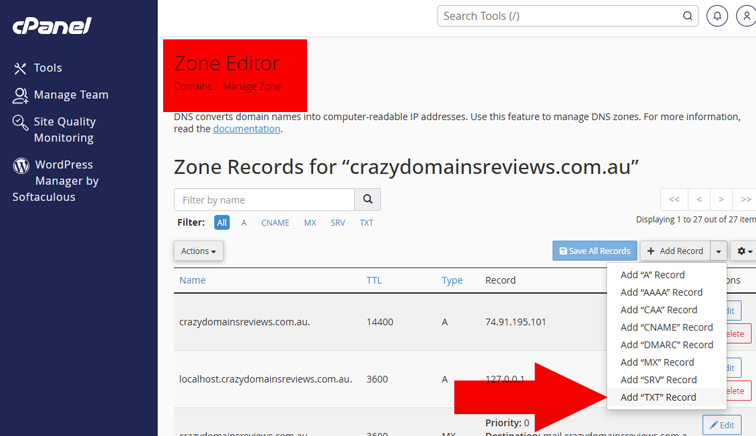
What if your domain is registered with another domain name registrar and you are using Crazy Domains hosting products? Then you can add TXT Record using cPanel Option. Simply login to cPanel and locate DOMAIN > ZONE EDITOR. On the next screen press on “Manage” button and add your record to your web hosting DNS Record like so:
How-to Speed-Up DNS Propagation
Open Windows Command Prompt (Search Windows Search Box with CMD) and run any one or all these commands:
- nslookup yourdomain.com.au
- ping yourdomain.com.au
- tracert yourdomain.com.au
Frequently Asked Questions
What does a typical TXT record look like?
A TXT record is just a string of text. For domain verification, it might look like google-site-verification=aBcDeFg12345HiJkLmNoPqRsTuVwXyZ. For email SPF, it often starts with v=spf1... and lists server information.
How long do I need to keep a TXT verification record?
For one-time domain verification (like with Google Search Console), you can often remove the TXT record after your domain has been successfully verified. For ongoing services like email SPF or DKIM records, you must leave them in place permanently.
Can I have multiple TXT records on my domain?
Yes, you can and often will have multiple TXT records for different purposes. For example, you can have one for Google verification, one for Microsoft verification, and a DKIM record all at the same time. The only exception is SPF, where you should only have one SPF record per domain.
My domain verification is failing, what should I do?
The most common reason for failure is not waiting long enough for the record to propagate. Wait at least an hour and try again. Also, double-check that you have copied and pasted the value exactly, without any extra spaces or typos.
What's the difference between an SPF and a DKIM record?
They are both TXT records for email security. An SPF record says which servers are allowed to send email for you. A DKIM record adds a digital signature to your emails to prove the content is legitimate and hasn't been altered.