

G’day! If you’ve just signed up for a professional email service like Google Workspace or Microsoft 365, one of the final steps is to tell the internet where to deliver your mail. This is done with a special DNS record called an MX record. It might sound complex, but it’s really just like giving the post office a mail-forwarding address. As a web developer, I’ve configured these hundreds of times. This guide will show you exactly how-to add an MX record in Crazy Domains, step-by-step.
Prefer to Watch the Video?
If you’re a visual learner and would rather see this in action, I’ve got you covered. I’ve filmed a complete tutorial on my RankYa YouTube channel that will walk you through the entire process. Just press play below.
NOTE: MX Record Option is available for wide range of products, basically, browse in to the product you want to add MX record to see if the option is available to add/modify (if not, contact support).
What is an MX Record Anyway?
An MX (Mail Exchanger) record is the part of your domain’s DNS that directs incoming emails to the correct mail server. Without it, the internet wouldn’t know where to send emails addressed to `you@yourdomain.com.au`. You’ll also see a “Priority” number next to each MX record. It’s simple, the **lower the number, the higher the priority**. Your email provider, like Google, often gives you multiple records with different priorities to act as primary and backup mail servers.
Step-by-Step: Adding MX Records in Crazy Domains
Ready to get your email flowing? Let’s get this done. The process is very precise, so follow each step carefully.
Step 1 Get the MX Record Values from Your Email Provider
Before you even log in to Crazy Domains, you need the MX records from your email provider (e.g., Google or Microsoft). They will provide a list of values that include a destination server, a priority number, or both. Have this list open and ready.
Step 2 Log in and Go to DNS Settings
Head over to the Crazy Domains website and log in to your account. Find the domain name you’re setting up email for and click to manage it. Look for the “DNS Settings” option to open the zone editor.
Step 3 Remove Existing MX Records (Very Important)
This is a critical step. To avoid conflicts and delivery failures, you must delete any existing MX records. Look through your DNS list for any records with the type “MX” and remove them. You want to start with a clean slate before adding the new ones.
Step 4 Add the New MX Record(s)
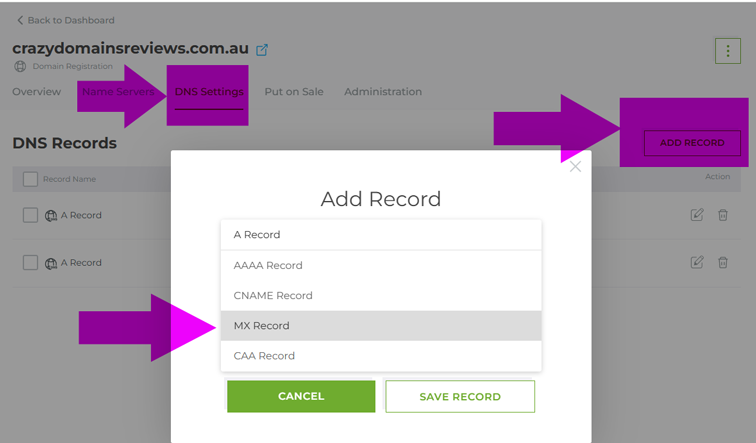
Now, click “Add Record” and select “MX” from the dropdown list. You will need to fill in the following fields for each record your email provider gave you.
Adding MX Record to DOMAIN NAME > DNS Setting:
- Host (or Name) For adding MX records for DOMAIN NAME (leave Sub Domain Option empty).
- Value (or Points To) This is the mail server address you were given (e.g., `aspmx.l.google.com`). Copy and paste it carefully.
- Priority Enter the priority number associated with that value (e.g., 1, 5, 10).
Click “Save” and repeat this step for all the MX records your email provider listed.
Adding MX Record to Web Hosting cPanel > DNS Setting:
- Host (or Name) For MX records, this is almost always yourdomainname.com.au. (with a dot. at the end), which represents your main domain.
- Value (or Points To) This is the mail server address you were given (e.g., `aspmx.l.google.com`). Copy and paste it carefully.
- Priority Enter the priority number associated with that value (e.g., 1, 5, 10).
- TTL (Time To Live) You can usually leave this at the default setting 3600.
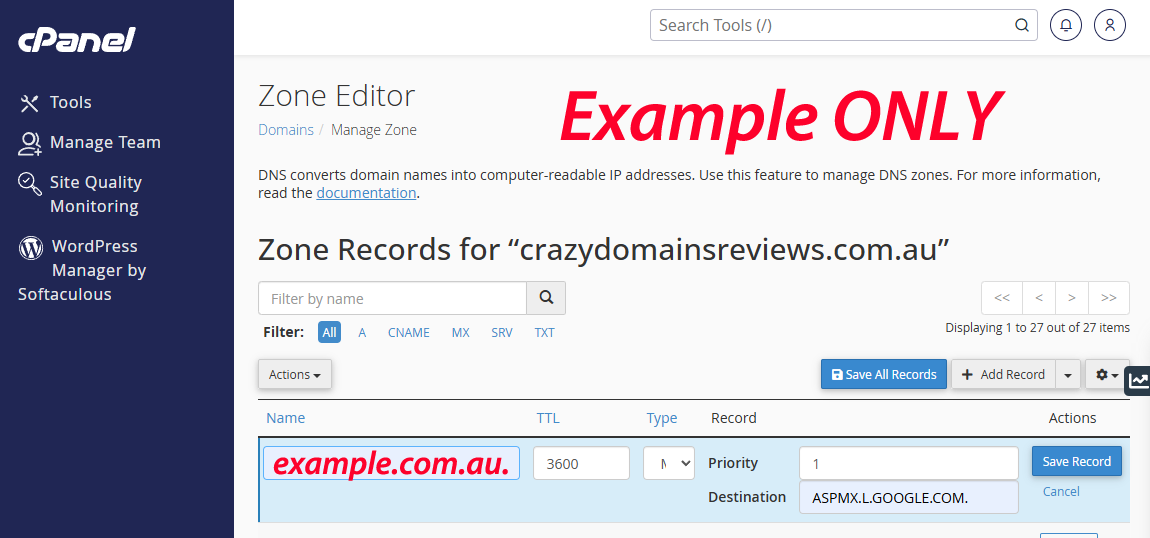
Click “Save” and repeat this step for all the MX records your email provider listed.
Step 5 Save and Wait for Propagation
Once all the new MX records are added, your job is done. It will now take some time for these changes to update across the internet. This can take anywhere from an hour to several hours. Be patient, and your emails will soon start arriving at your new inbox.
Frequently Asked Questions
What do I put in the 'Host' field for an MX record?
For an MX record that handles email for your main domain (e.g., yourname@yourdomain.com.au), you should almost always use the @ symbol in the 'Host' or 'Name' field.
Why do I need to delete the old MX records?
Having multiple sets of MX records from different email providers creates a conflict. The internet won't know where to deliver your mail, leading to lost or bounced emails. Removing the old ones ensures all mail is directed to your new provider only.
My email provider gave me five MX records. Do I add all of them?
Yes, you should add every MX record that your provider gives you. They provide multiple records with different priority numbers to create a reliable system with primary and backup servers, ensuring you never miss an email.
How long does it take for MX records to start working?
After saving your changes, DNS propagation typically takes between 1 to 4 hours. However, it can sometimes take up to 24 hours to fully update across the entire internet. It's best to wait at least a few hours before expecting email to flow perfectly.
I've added the records but my email isn't working. What's wrong?
First, wait a few more hours for propagation. If it's still not working, the most common issues are typos in the server names, incorrect priority numbers, or failing to delete the old, conflicting MX records. Carefully double-check your entries against the list your email provider gave you.