

G’day! As an Australian web developer and expert with swiss-army-knife digital skillset, I often need to manage DNS settings for my own projects and also for my valued clients. A common task is pointing a part of a domain to another service, and for that, you need a CNAME record. If you’re wondering how-to add a CNAME record in Crazy Domains, you’ve come to the right place. This post will show you exactly how to do it, step-by-step. It’s a very simple process once you know where to look.
Prefer to Watch? If you learn better by watching, I’ve created a complete how-to video on my YouTube channel. You can watch me go through the entire process on screen. Just press play below.
Video Tutorial: How-to Add a CNAME Record in Crazy Domains
First, What is a CNAME Record? (A Simple Explanation)
Before we jump into the steps, let’s quickly understand what a CNAME record is. Think of it as a nickname or an alias. Instead of pointing a domain or subdomain to a specific server IP address (like an A Record does), a CNAME points it to another domain name. It’s useful when a third-party service, like Google Workspace, Shopify, or an email marketing platform, asks you to point a subdomain (like ‘mail.yourdomain.com.au’) to their own service (like ‘ghs.google.com’).
Step-by-Step: How-to Add Your CNAME Record at Crazy Domains
Alright, let’s get this done. Just follow these simple steps, and you’ll have your CNAME record set up in no time. It usually takes less than five minutes.
Step 1 Log in to Your Crazy Domains Account
The first step is always the easiest. Head over to the Crazy Domains website and log in to your account dashboard where you manage your products and services.
Step 2 Find Your Product’s DNS Settings
NOTE: because you can change DNS settings for various Crazy Domains products (domain name, Premium DNS, web hosting cPanel etc.), simply locate the DNS setting for the product you are using. The steps to add CNAME record is the same through DNS Settings. In this example: I’ll show you adding it to your domain name and web hosting with cPanel.
Once you are logged in, you need to navigate to your list of domain names. Find the specific domain name that you need to add the CNAME record for and click on it to manage it.
Step 3 Access Your DNS Settings
Inside your domain management area, you’ll see several options. You are looking for something called “DNS Settings”. This is the control panel for your domain’s records.
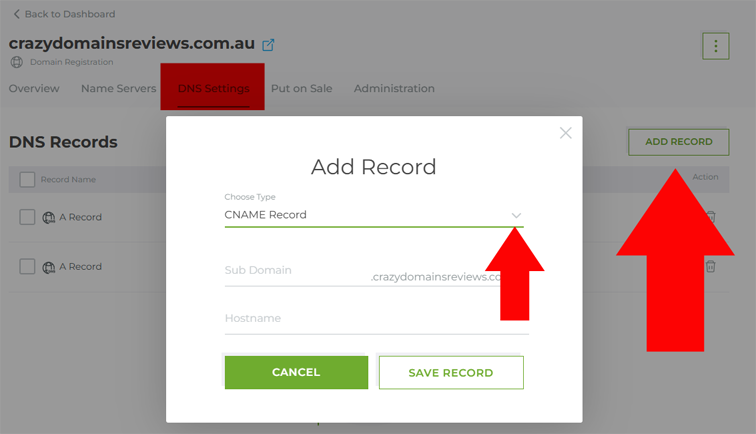
Step 4 Add the New CNAME Record
In the DNS settings area, you will see a button to “Add Record” or “Add New Record”. Click it, and you will be asked to choose the record type. Select “CNAME” from the dropdown list. You will then see a few fields to fill in.
- Host (or Name) This is your subdomain. For example, if you are setting up ‘shop.yourdomain.com.au’, you would just enter ‘shop’ here.
- Value (or Points To) This is the destination domain name that the service gave you. For example, ‘shops.myshopify.com’.
- TTL (Time To Live) You can usually leave this at the default setting. I recommend 1 Hour or 3600 seconds.
Double-check that you have copied and pasted the values correctly to avoid any errors.
Step 5 Save Your Changes
Once you’ve filled in the details, click the “Save” or “Update” button. That’s it! You’ve successfully added a CNAME record in Crazy Domains. Now, you just have to wait a little while for the changes to take effect across the internet. This is called propagation and can take anywhere from a few minutes to a few hours.
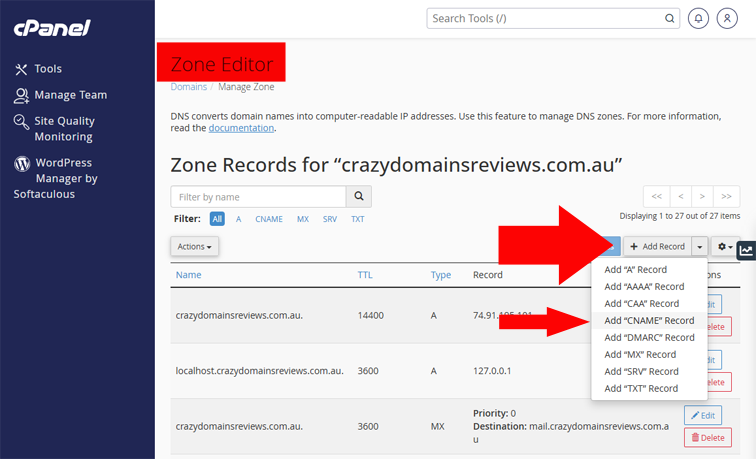
Adding CNAME Record Using cPanel ZONE EDITOR
If you’ve got a popular product like Web Hosting with cPanel access. Then, simply login to your cPanel and find the link “ZONE EDITOR” under “DOMAINS” menu. On the next screen “Press Manage” then add your new record.
A Final Tip from Me
When you add a CNAME record, make sure there are no other records (like an A record) for that exact same subdomain host. Having conflicting records for the same host name can cause issues. If you are adding a CNAME for ‘shop’, make sure there isn’t already an A record for ‘shop’. If there is, you will likely need to delete either one.
Frequently Asked Questions
What is a CNAME record used for?
A CNAME (Canonical Name) record is used to point a subdomain to another domain name. It's often used to connect your domain to third-party services like Shopify, Google Workspace, or email marketing platforms without needing to use an IP address.
How long does it take for a CNAME record to work in Crazy Domains?
After you save a new CNAME record, it needs to propagate across the internet's DNS servers. This process can take anywhere from 30 minutes to a few hours, but in some rare cases, it might take up to 24 hours to fully complete.
What's the difference between a CNAME record and an A record?
An A record points a domain or subdomain directly to a server's IP address (a series of numbers). A CNAME record, on the other hand, points a subdomain to another domain name (an alias). You use an A record for your primary domain, while CNAMEs are typically for subdomains.
Can I add a CNAME record for my main domain (e.g., example.com.au)?
No, you should not set a CNAME record for your root or main domain name (known as the apex domain). This can interfere with other important records like your MX records for email. CNAME records are intended for subdomains only (e.g., 'www', 'blog', 'shop').
What do I put in the 'Host' field for a CNAME record?
In the 'Host' (or 'Name') field, you only need to enter the subdomain part. For example, if the full subdomain is 'mail.yourdomain.com.au', you would just type 'mail' into the Host field. Crazy Domains automatically adds the rest of your domain name.