

G’day! As a digital creator and a website manager, I’m always moving things around. Sometimes a page’s URL needs to change, or a client buys a new domain they want to point to their existing website. When that happens, you need to tell browsers and Google where the new location is. That’s where a URL redirect comes in. This post will show you exactly how-to redirect URLs in Crazy Domains using their simple domain forwarding tool. It’s a vital skill for managing your website properly.
Prefer to Watch the Video Tutorial?
If you’d rather see this done on screen, I’ve got you covered. I’ve created a complete video walkthrough on my RankYa YouTube channel that will guide you through every click. Just press play below.
Why Would You Need to Redirect a URL?
Before we get to the “how,” let’s quickly cover the “why.” You might need to set up a redirect for several common reasons, especially as a business owner in Australia.
- URL = Uniform Resource Locator
- You have renamed a page and changed its URL structure
- You have moved your website to a completely new domain name
- You bought a second domain (like a .net.au version) and want it to go to your main .com.au site
- You want to send traffic from a simple, memorable URL to a longer page link for a marketing campaign
A Quick Word on 301 Redirects
When you use tools in Crazy Domains, you are creating what is known as a “301 Redirect”. Don’t let the number scare you. It simply means the move is permanent. This is the best type of redirect for SEO because it tells search engines like Google to pass all the authority and ranking power from the old URL to the new one. It’s the correct way to do it 99% of the time.
Step-by-Step Setting Up a URL Redirect in Crazy Domains
Alright, let’s get it done. The process is very straightforward inside your Crazy Domains account.
Step 1 Log in and Select Your Domain
NOTE: you will need Premium DNS to be able to domain forward. First, log in to your Crazy Domains account dashboard. Find the domain name you want to redirect FROM and click to manage it.
Step 2 Find the ‘Domain Forwarding’ Option
In the management area for that domain, look for an option called “Domain Forwarding” or “URL Forwarding”. It’s usually in the main list of settings. Click on it to open the forwarding tool.
Step 3 Add Your Redirect Details
This is the most important step. You will see a simple form asking where you want to redirect the domain to. In the destination box, you need to type the full URL of the new page or website, including the `https://` part. For example, `https://www.my-new-website.com.au`.
Step 4 Save and Test Your Redirect
After you have entered the destination URL, click the “Save” or “Update” button. Now, you just need to wait a little while for the change to take effect. After about 30 minutes, try visiting your old URL in your browser. It should automatically take you to the new destination you just set.
Setting Up a URL Redirect in Crazy Domains Without Premium DNS
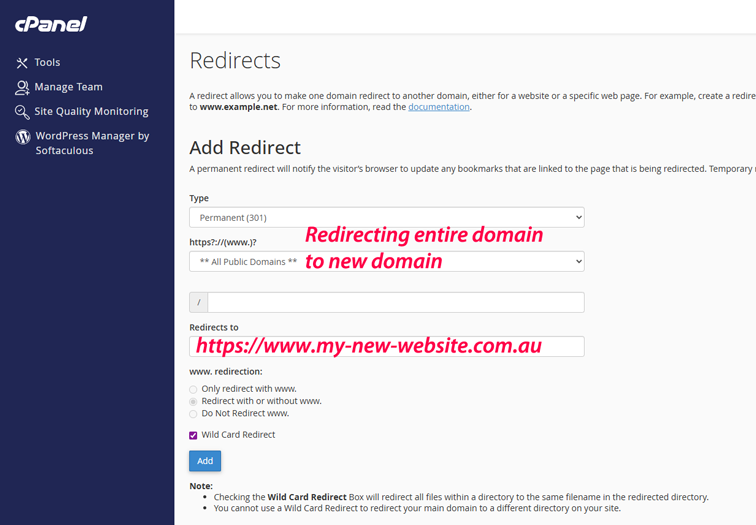
To be able to setup redirects without Premium DNS, you will need a web hosting plan and cPanel access. Here’s the setting for redirects in cPanel. Login to cPanel > Domains > RedirectsYou can use Wildcard redirect to redirect 1 domain to another entirely.
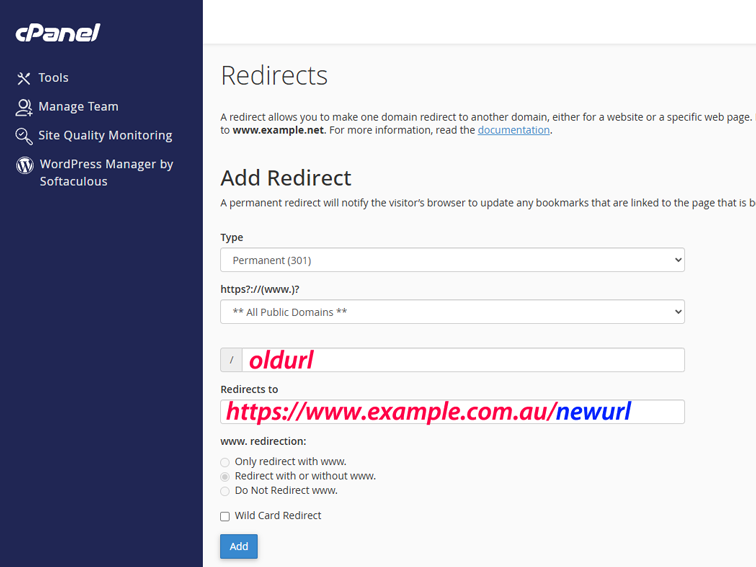
You can use cPanel redirection to redirect old URL to new URL within the same domain.
If you’re using popular Content Management Systems like WordPress. There are many Redirection Plugins that makes redirecting web pages a simple process.
Frequently Asked Questions
What is a 301 redirect?
A 301 redirect is a permanent instruction that sends all visitors and search engines from one URL to a different one. It's the best method for SEO as it passes along the original page's ranking value to the new page.
How long does it take for a redirect to start working?
While the change is saved instantly in your Crazy Domains account, it can take anywhere from 30 minutes to a few hours for the redirect to become active across the internet due to DNS propagation.
Will redirecting a URL hurt my SEO?
No, quite the opposite. Using a 301 permanent redirect is the correct way to preserve your SEO value when a URL changes. It tells Google that the page has moved permanently, which helps maintain your rankings for the new URL.
Can I redirect my domain to my Facebook page?
Yes, absolutely. This is a popular use for domain forwarding. Simply follow the steps and use your full Facebook page URL as the destination address. This is great for businesses that don't have a full website yet.
How do I remove a redirect in Crazy Domains?
To remove a redirect, you can go back to the "Domain Forwarding" section in your Crazy Domains account and simply delete the forwarding rule you previously created and save the changes. If you've used cPanel Redirects option, simply delete the 301 Rule you've created.