

G’day! If you’re running a business in Australia, one of the first things you need is a professional email address that matches your domain name. It looks much better than a generic Gmail or Outlook account. As a digital creator and a website manager, I’ve done this hundreds of times for my valued clients. I’m here to show you how-to setup an email account in Crazy Domains. It’s a quick and simple process, and this post will walk you through each step.
Prefer to Watch the Video?
If you’re a visual learner, you’re in luck. I’ve recorded a full tutorial on my YouTube channel that shows you exactly where to click. You can follow along with me by watching the video below.
Why You Need a Professional Email Address
Before we start, let’s quickly cover why this is so important. Using an email like `contact@yourbusiness.com.au` instead of `yourbusiness123@gmail.com` makes a huge difference.
- It builds trust and shows customers you are a legitimate business
- It promotes your brand every time you send an email
- It keeps your personal and business communications separate
- It looks professional and helps you stand out
Step-by-Step: Setting Up Your Email in Crazy Domains
Ready to go? All you need is access to your Crazy Domains account. Let’s get your new email address up and running in just a few minutes.
Step 1 Log In and Find Your Hosting
First, log in to your Crazy Domains account dashboard. From there, you need to find the product you’re using for your email. This will usually be under a tab called “Web Hosting” from there navigate to cPanel and login.
Step 2 Navigate to the Email Accounts Section
Once you are in your hosting control panel, look for an icon or link that says “Email Accounts”. This is the central hub where you will manage all the email addresses for your domain.
Step 3 Create a New Email Account
You should see a prominent button that says “Create” or “Add Email Account”. Click this to start the setup process. This will open a new screen where you’ll enter the details for your new mailbox.
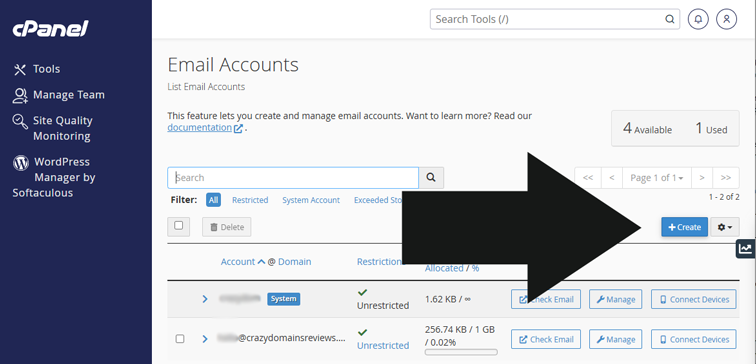
Step 4 Enter Your New Email Details
Now you just need to fill in the boxes. It’s very straightforward.
- Username This is the part before the @ symbol. For example `info`, `support`, or `your.name`.
- Password Create a strong, secure password for the account. There is usually a password generator you can use (keep your password in a safe place like a password manager).
- Storage Space Assign how much storage space this mailbox will have. You can usually start with the default and change it later if needed.
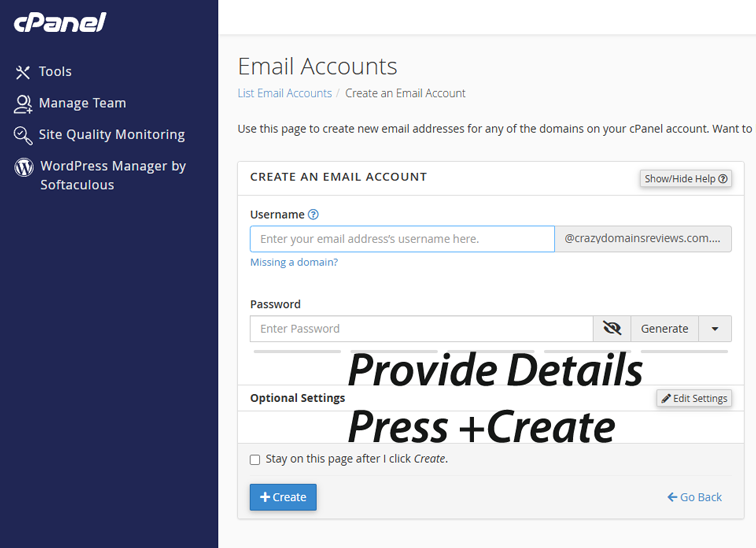
Once you’ve filled everything in, click the “+Create” button.
How to Access Your New Email Account
Congratulations, your new professional email account is ready. The easiest way to start using it immediately is with Webmail. In your Email Accounts list, you should see a button next to your new address that says “Check Email”. This will open your new inbox directly in your web browser, allowing you to send and receive emails right away. Later, you can also set it up on your phone or in an email program like Outlook or Google Workspace.
Frequently Asked Questions
What is the difference between a professional email and a free one?
A professional email uses your own domain name (e.g., info@yourbusiness.com.au), which builds brand trust and credibility. A free email uses a generic domain (e.g., yourbusiness@gmail.com), which can look less professional to potential customers.
How many email accounts can I create with Crazy Domains?
The number of email accounts you can create depends on your specific web hosting or email hosting plan. You can check the details of your plan within your Crazy Domains account to see your limit. Basic Economy Linux Hosting offers you up-to 5 email accounts.
Can I access my Crazy Domains email on my phone?
Yes, absolutely. Once your account is created, you can configure it on your smartphone (iPhone or Android) or a desktop email client like Outlook or Thunderbird using standard IMAP or POP settings. If using cPanel, find the setting "Connect Devices" in your "Manage an Email Account" section.
What is Webmail?
Webmail is a simple way to access your email inbox through your internet browser without needing to set up any special software. It's perfect for checking your emails from any computer, anywhere in the world.
Is my email account ready to use immediately after I create it?
Yes, in almost all cases, the email account is created and ready to use within a minute or two. You can log in via Webmail straight away to start sending and receiving messages. Or use your new email address to send messages.